OSTAR is a platform and repository for spatial tests. Our goal is to make spatial tests accessible for all researchers and provide recommendations for which tests to use. You can use this platform to collect data with standard spatial tests, create custom batteries of those tests, or create and administer custom tests.
Log in or create an account to get started.
Online Spatial Tests and Assessments Repository
Welcome!
This is a platform and repository for making spatial tests accessible for all researchers. It allows you to assemble existing tests into a battery and generate a link to give to participants. Data are stored in our database and accessible from your Projects page. You can download raw data or processed data. You can also create new tests from image files.
●
Step-by-step instructions for using the platform, and recommendations.
●
Your batteries, how many participants have finished, and your data.
●
Put your tests in order, add attention checks, and get the participant link.
●
Browse spatial tests adapted for online use.
●
Make a test from your own images or a paper-and-pencil test.
●
Original sources and psychometric papers for each test.
●
Who we are: the researchers behind OSTAR.
●
Edit your profile or change your password.
01 — Select tests
Test catalog
Add one or more tests to a battery. Configure each one, then generate a single link that runs the whole set for a participant.
Upload your own images to create a custom test or adapt a paper & pencil test.
02 — Configure
Selected items
Item information function
Custom test
Create a custom test
Upload a stimulus image, mark the answer boxes, then upload the rest of the item bank and tag the correct answer for each one. Only you can see and use it until an administrator adds it to the shared catalog.
No image uploaded
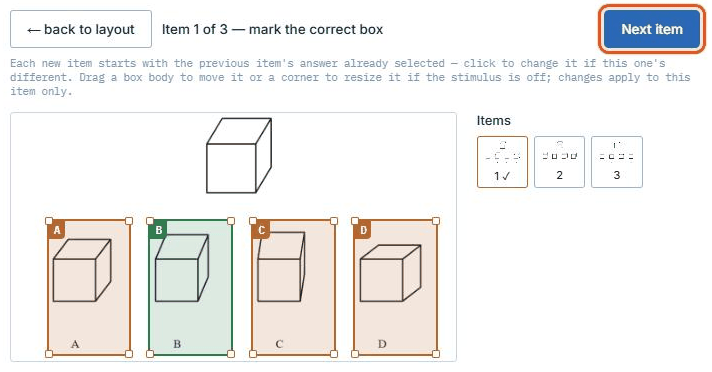
Each new item starts with the previous item's answer already selected — click to change it if this one's different. Drag a box body to move it or a corner to resize it if the stimulus is off; changes apply to this item only.
Upload a template image to get started
x: —, y: —, w: —, h: — (px, at image resolution)
Boxes
Items
Items
Create a test battery
Choose tests to include in this battery. Set the order in which participants will complete them. Add attention checks if desired. Use the buttons at the bottom to generate a link to send to participants.
03 — Ready
Generate participant link
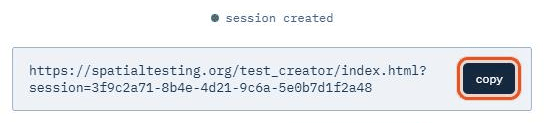
Send this link to your participant. It opens the Unity WebGL build and runs each test below in order.
session created
Guide
How to use OSTAR
Using a single test
To use one test in your study, add it to a battery on its own and generate a link. The orange outlines in the pictures show what to click.
Click Catalog at the top of the page.
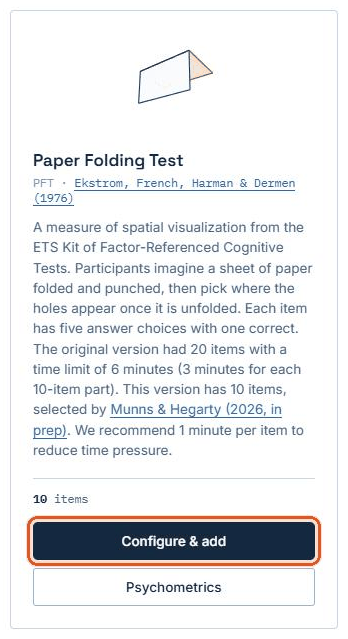
Find the test you want and click Configure & add on its card.
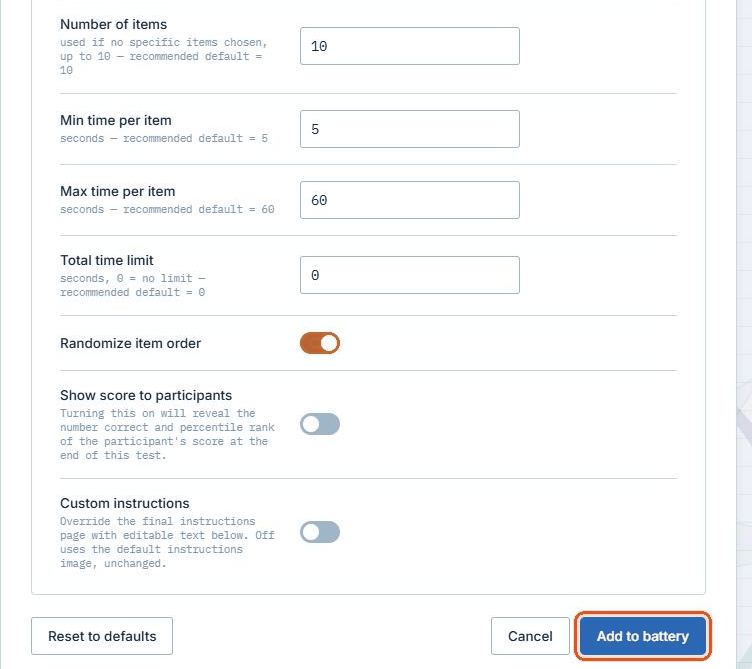
Keep the recommended settings, or change them (for example, the number of items or the time per item). Then click Add to battery. This takes you to the Battery page.
Type a name for the battery in Battery name.
Click Generate pilot link to try the test yourself first. When you are ready to collect data, click Generate final link.
Click copy next to the link and send it to your participants, for example in Prolific, SONA, Qualtrics or an email.
Their results appear on your Projects page, where you can download the data.
Using multiple tests
To build a battery of several tests, add each test, set the order, and generate one link that runs them all.
Add your first test as above: Catalog → Configure & add → Add to battery.
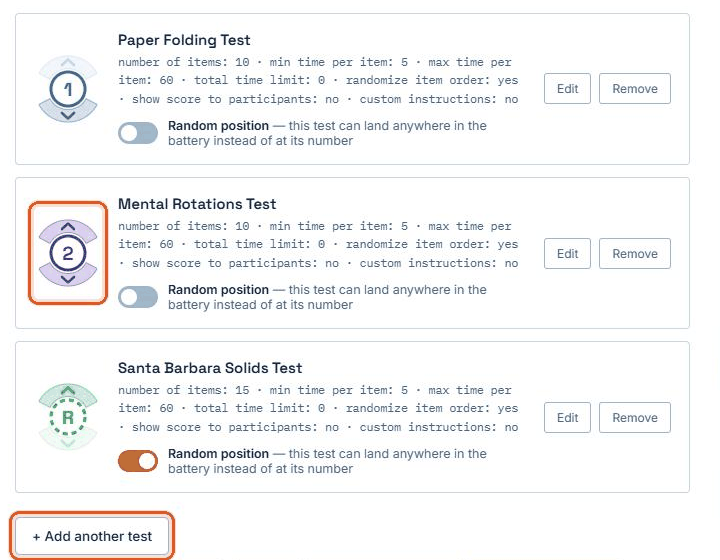
To add the next test, click + Add another test on the Battery page (or Catalog at the top) and repeat. Each test has its own settings.
Set the order on the Battery page: drag a test up or down the list, or click the arrows above and below its number. Participants take the tests from top to bottom.
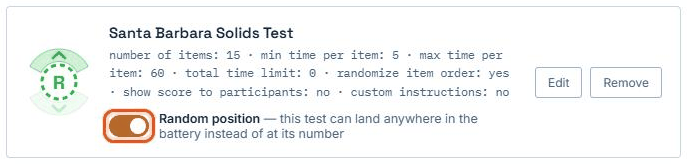
To put a test in a random position for each participant, switch on Random position on its card on the Battery page; its number ring turns dashed. Items within each test are shown in random order unless you turn off Randomize item order in the test's settings.
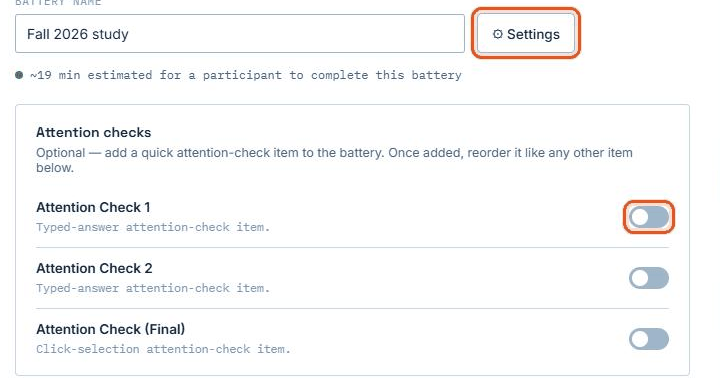
Attention checks can be used to catch low-effort participants. Switch on one or more Attention checks on the Battery page. Use ⚙ Settings to change the message shown between tests.
Click Save to keep a draft. Then click Generate pilot link to try it, or Generate final link to collect data, and send the link to participants.
Create a custom test
To create a test from your own images or from an existing paper-and-pencil test, upload a picture of each item and draw a box over each answer choice. Every item needs the same layout, with the answer choices in the same places.
Click Create test at the top of the page.
Choose how participants answer: Multiple choice (one correct box), Multiple selections (two correct boxes), Same/different (pairs of boxes) or Fill in the blank (a typed answer). Then click Upload image and choose one of your item images. You use it to mark where the answer choices are.
If the image is a scan or a photocopy, click Clean up image… to straighten, crop and tidy it. The same clean-up is applied to all your item images.
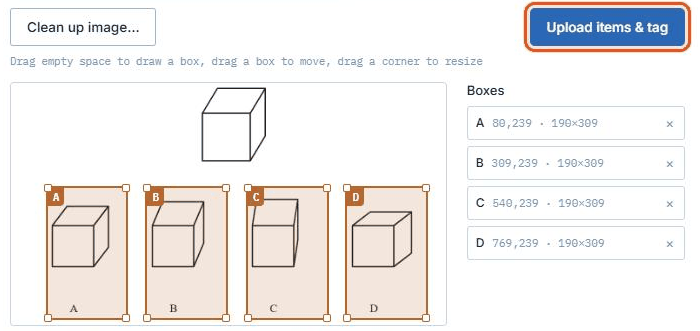
Draw a box over each answer choice: drag across empty space to draw a box, drag a box to move it, and drag a corner to resize it. Boxes are lettered A, B, C… in the order you draw them. Then click Upload items & tag and choose all of your item images at once.
For each item, click the correct box (two boxes for multiple selections, or type the answer for fill in the blank). It turns green. Then click Next item. If an item's choices sit slightly differently, drag its boxes into place. On the last item the button says Finish.
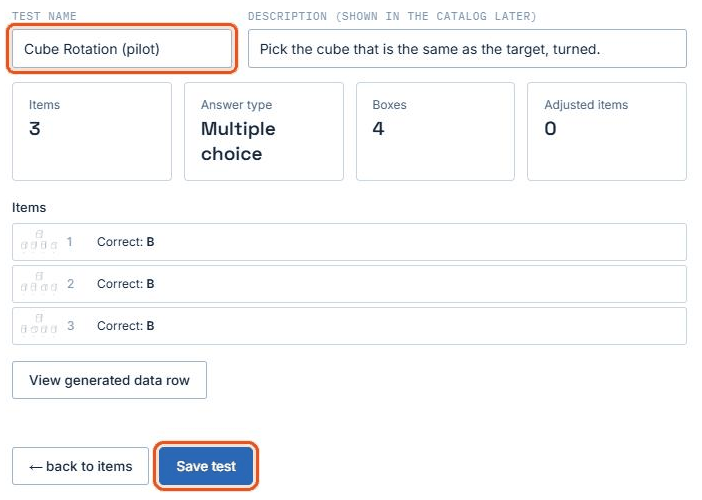
Give the test a Test name and a short Description, check the list of items, and click Save test.
Your test now appears in the Catalog with an Only you badge. Add it to a battery like any other test. Only you can see it unless an administrator adds it to the shared catalog.
Recommendations
The catalog versions are refined, shortened tests. These tests were refined using item response theory (IRT). The standard version of each test in the catalog is the refined, shortened version. See Psychometrics on each test and the Literature page for the studies.
Give a generous time limit for each item. We recommend a generous time limit per item, such as 1 minute per item, instead of one time limit for the whole test.
Use reliable measures. It is important to measure spatial ability with reliable tests. These tests have been shown to have high internal reliability.
Combine three tests. We recommend using three tests together as a combined measure of spatial visualization ability.
More detailed recommendations are coming soon.
Info
Who we are
OSTAR is built and maintained by spatial cognition, education, and measurement researchers at four universities.
UCSB
University of California, Santa Barbara
Mary HegartyDistinguished Professor of Psychological & Brain Sciences
Mitch MunnsPhD Candidate
NU
Northwestern University
David UttalKenneth F. Burgess Professor of Psychology and Education
Qingzhou ShiPostdoctoral Researcher
Danielle Rothschild DoylePhD Student
Lauren SmithPhD Student
Amma Bromley-PerryResearch Coordinator
TU
Temple University
Nora NewcombeLaura H. Carnell Professor of Psychology
UA
University of Alabama
Joni LakinProfessor of Educational Research, ESPRMC
Stefanie WindProfessor of Measurement and Evaluation, ESPRMC
Literature
Literature
The original source for each test in the catalog, and papers reporting psychometrics for these kinds of tests.
Data
Your projects
Every battery you've saved, piloted, or run, with its tests, timing, and participant data in one place. Draft and pilot batteries can be edited or deleted; run batteries are locked — duplicate one to make a similar battery.
Admin
All datasets — every lab
Every battery saved across every researcher account, for oversight and combined export. Only visible to your account.
Custom tests
Every researcher's custom tests. Private ones are only visible to their author; adding one to the catalog makes it available to every account.
Clean up a scanned or photocopied image
Straightens tilted or keystoned scans, evens out grey or blotchy paper, removes specks, and can redraw faint or broken lines as solid straight ones. The same settings, including any crop, are used for every item image you upload next, so the answer boxes line up on all of them.
Original
Cleaned
Straighten
Perspective is applied the same way to every item image, so use it when they were all photographed or scanned the same way.
Crop
The same crop is used for every item image. Clean up and crop before drawing the answer boxes.
Clean
Rebuild lines
Check the preview: a line the tool adds or moves could change what an item shows.
Researcher profile
Password
We'll email you a link to set a new password.
Set a new password
Battery settings
Optional — everything here has a sensible default and only needs a look if you want to change it.